ZaLiTH
Members
-
Joined
-
Last visited
Everything posted by ZaLiTH
-
Yup, I've got my home PC set up quite nicely for all that stuff. I spend many hours at night playing around with this sort of stuff.. Guess you could say it's a hobby bordering on an obsession. I definitely will. If I can figure it out, it will become a photographer-style portfolio website for a good friend of mine. That definitely looks interesting, I'll dig into it and see where it takes me. Thanks.. Skimming through the site, I chuckled at this line listed under 'disadvantages'
-
Try the tips listed either here or here. The first uses predominantly jQuery, while the second is mostly CSS3. Edit: Lol... I didn't see mrchristoph's reply before I posted mine...
-
Yeah, that's the problem with most of the information I've found online... It either goes way over my head, or it's aimed at images directly. Considering it must be triggered when the page is scrolled, I assumed as much.. I'm still learning* PHP, so I just wanted some confirmation of that. In theory, I should be able to use a straight 'lazy load' plugin such as this one, and simply assign the div's ID instead of 'img', right? I know that particular plugin has issues with different browsers, I'm still looking for a more updated one. * - I'm actually trying to teach myself, I don't know anybody else that knows it... Or HTML, or CSS, or JS. Edit: I think... I think I may have found it. Maybe.. According to this article, I should be able to use this: $('#forms').load('content/headerForms.html', function() { // Code here runs once the content has loaded // Put all your event handlers etc. here. }); So... In theory, combining this concept with Viewport Selectors for the script trigger, I should be able to load a piece of PHP script in a template file with the containing div scrolls into view. I love theories.. Really do. But I'll have to wait until I get home from work to try it out. I don't have my own domain to play with (yet), nor do I have any sort of PHP server installed on my work PC. Mind you, speaking of work... I should probably get back to my user manuals now. Technically, my lunch break ended over an hour back.
-
Here be my two-cents' worth. The CSS validation errors are CSS3 related, JigSaw doesn't validate CSS3 yet, so that should cover most of the CSS validation. The HTML errors are much the same, with quite a few exceptions though. With HTML, certain elements have optional closing tags, but the validators really don't like these cases. That pretty much covers the 'link' and 'img' validation errors. While 'li' closing tags are optional, 'ul' closing tags are not... So that there is definitely a problem. Shouldn't really cause too many problems for modern browsers (HTML5 compatible), but it's still wrong. Having a 'div' inside 'li' (line 312)? Hmm... Again, it will work, but it really should rather be a 'span' in that case. Looks like a fair amount of the validation errors are because of an incorrect doctype for the structure, for example using HTML5 code with HTML4 doctype (such as 'script' tags without 'type'). However, this could possibly be due to something in the header of the WP theme (not sure, only PHP source would prove/disprove that). I could go on, but overall to me it looks like the code needs a good spring clean session..
-
Ooh.. Very nicely done Joe. I think I might also save a copy of that to play with later if you don't mind... Just a thought though: If you're going the CSS3 route, why not simply use HTML5's 'placeholder' attribute with a JS fallback for older browsers?
-
Do you want the footer to be at the bottom of the screen all the time, regardless of how much content is displayed? Have a look at this tutorial, I've used that technique many times and it works like a charm. Keep the footer at the end of the page, but never higher than the bottom of the window. Edit: Try the attached file. I put comments in the styling to explain why things are done the way they are. Footer_at_bottom.html
-
Had an idea the other day for an interesting website layout, but I'm not sure how intensive the mechanics behind it would be... I don't want to give away too much at this point, but perhaps someone could help clear up a few queries I have regarding the general concept? I've never used any sort of 'lazy loading' setup before, so it's a completely new field to me. I believe there are different methods that would fit this description; so when I talk about 'lazy load', I'm referring specifically to the idea of only loading the contents in question when it scrolls onto the screen. The Content I want to lazy load a div with all it's contents. The majority of information I can find for noobs (such as myself) cover lazy loading images specifically. The rest of it is aimed at the more experienced group without clear step-by-step descriptions. So can this idea be applied to a div (perhaps linked by ID) containing any type of content? PHP vs jQuery The end result will be in a PHP based site (WordPress template, and/or perhaps a different CMS later if that makes any difference), but I'm not sure which method would work best or work at all for my intended purpose. I assume for the purpose of tracking the position of the page in the viewport, jQuery (or at least JS in general) would be the way to go here?
-
Don't think it will be updated.. NppFTP plugin has been around for a while, but I never liked the way it worked in the past. I see it's now got all the features FTP Sync had, with a slightly easier-to-use 'Profile Settings' layout. I used it pretty solidly for about 2 hours connected to a GoDaddy hosted site last night (their hosting is slow on a good day) and didn't have any issues with it.
-
Just a small note on FTP Sync: The Notepad++ update to 5.9.3 has broken FTP Sync properly, it fails to keep the connection alive properly when no files are being actively transferred. If you're using a newer version of N++, it's best to use the built-in NppFTP plugin instead.
-
From W3.org: And in the stylesheet, all I added was this: html { height: 100%; } body { overflow: hidden; height: 100%; } Now it works perfectly in Chrome, IE and Firefox.
-
Just figured it out.. By the way, you don't need to specify the doctype with HTML5. Once I added "html { height: 100%; }" and "body { height: 100%; }" it suddenly started working perfectly. No idea why it was only acting up in Chrome though... I think that's why I couldn't find the problem earlier, all my Google searches revolved around potential Chrome layout issues.
-
The only pieces of the code I didn't posted here were the head tags and styles related to colours (tried to keep my post a bit shorter), the rest is the same as what I was using to take the screenshots I attached, and therefore the same code that works perfectly in IE and Firefox.
-
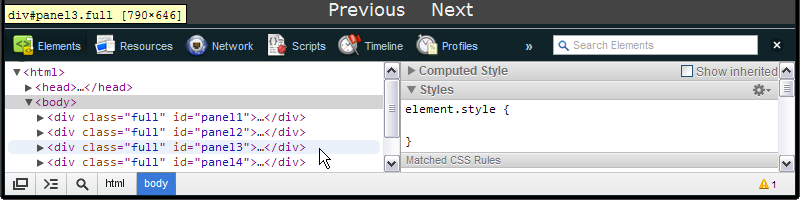
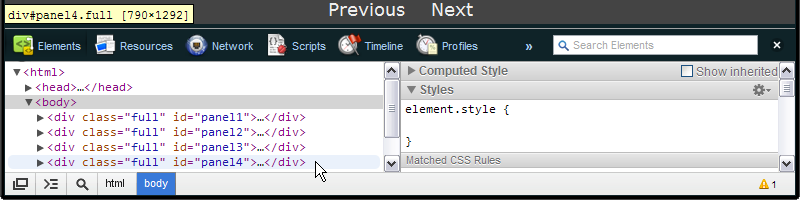
I think I've found a rather unusual layout bug with Chrome... If so, then this is a sad day indeed. Normally I develop a site while viewing in Chrome, and then work on other browser support after Chrome looks right. This time it's my trusty Chrome that's not playing along. Anyway, here's a really simple example, with very strange results. The HTML in question: <body> <div class="full" id="panel1"> <h1>Panel 1</h1> <p>Panel 1</p> <div class="navigation"><a>Previous</a><a href="#panel2">Next</a></div> </div> <div class="full" id="panel2"> <h1>Panel 2</h1> <p>Panel 2</p> <div class="navigation"><a href="#panel1">Previous</a><a href="#panel3">Next</a></div> </div> <div class="full" id="panel3"> <h1>Panel 3</h1> <p>Panel 3</p> <div class="navigation"><a href="#panel2">Previous</a><a href="#panel4">Next</a></div> </div> <div class="full" id="panel4"> <h1>Panel 4</h1> <p>Panel 4</p> <div class="navigation"><a href="#panel3">Previous</a><a>Next</a></div> </div> </body> The CSS (minus a few unneeded colour rules to shorten it): * { padding: 0; margin: 0; position: relative; } body { overflow: hidden; } h1, p { padding: 0.5em 0 0.8em; } .full { display: block; width: 100%; height: 100%; } .navigation { position: absolute; bottom: 0; left: 0; right: 0; display: block; width: 100%; height: 30px; background-color: #444; color: #aaa; text-align: center; } .navigation a { display: inline-block; padding: 0 10px; font-size: 18px; line-height: 30px; } I love theory, because in theory this should work in virtually all browsers... I'm not using anything here that any of the current browsers don't support (barring 'inline-block' and IE of course, but that's a simple fix and it's not related to general layout, only anchor tags). The intended result is to have four block divs above each other on the page, each one at 100% height. This should give the overall page length a 400% height (4 screens' worth). And it does actually work as intended... In every browser except Chrome. The first two divs work perfectly, but then the third becomes doubled, and the fourth is doubled again. As seen in the following screenshots: First panel: Second panel: Third panel: Fourth panel: But.... How? Why? I know I could get around this with a bit of jQuery, but I really hate using scripting for basic layout elements like this. Has anybody else come across this? Or perhaps have a suggested solution?




-
Haha... Awesome, thanks. And I agree, Zen Coding is brilliant.. Especially for building those drop-down menus we've all come to hate love so much.
-
Since for me this is mostly a hobby and not a career, I don't have the resources to buy applications dedicated to the areas of website development.. So for me, Notepad++ is and probably always will be my holy grail. By the way, I'm not affiliated with any of the apps / plugins mentioned here. This isn't an ad for them... Simply a good mention from someone who likes them. For me, it seems like a boring task getting the base HTML out of the way so I can start playing with the CSS and jQuery... Not that it takes hours and hours, but it definitely could be streamlined in a few ways. Recently I found a plugin for Notepad++ (and Coda, and DreamWeaver, and TextMate, etc etc) that allows a pretty sweet looking method for HTML coding. The first 30 seconds of the video was enough to sell me on this, I suggest you have a look as well.. If it's not for you, then it's only a few minute of your life lost. World, meet Zen Coding: http://vimeo.com/7405114 For those of you who want TextMate style "Tab Triggers" in Notepad++ to navigate between the areas of the code you just entered... I haven't really tested this yet, I only found it just now, but it looks like the QuickText plugin does that quite well. And finally, instead of downloading files via FTP, editing, saving and then uploading again to see the changes on a live website.. FTP Synchronise does a beautiful job of handling the FTP automatically while you focus on the code itself. So, there you have it.. A code editor with customisable syntax highlighting, automatic FTP synchronisation, improved code navigation and abbreviation-based code completion. All rolled into one completely free app. Use it, don't use it, it's your choice.. I get the idea a few people will find this pretty useful though.
-
Thanks Mike.. I just hate being the victim of those dreadful "post moved to correct thread" type of messages. I'm sure being a moderator here, you know what I mean.
-
I just found some really useful tools regarding website coding that would / could make life a lot easier... Especially for people who can't afford the fancy apps. But.... I'm not quite sure where to share the links. I like to do things right from the start, so.. Any ideas? "Other Resources" under "Web Design Resources" seems the closest, but these are more for coding than designing.
-
Don't feel too bad. Just the other day I was fighting with wp_nav_menu in my template to display a custom menu, and after more than an hour I went to double check that I was using the right name, and I hadn't actually created the menu first....
-
You're not doing anything 'wrong' as such, WordPress is sometimes too smart for it's own good... It has built-in auto formatting functions in it's core. With both paragraph and break tags actually. I always disable the 'wpautop' function in my theme itself (Codex reference), which generally helps with this. Otherwise, there is a plugin called PS Disable Auto Formatting, but I only found it a few days ago and haven't tested it yet, so I'm not sure how well it works. Try it and see? Edit: This plugin looks like a better option if you go the plugin route: wpautop Control.
-
Thanks for the suggestion. I do remember trying that particular plugin the first time I used WordPress, but even back then with a much simpler theme I didn't keep it in the end. I get the feeling I'll be disabling (or at least trying to disable) the majority of it's features just to get the one I need... For example, in NGG, one feature is listed as "Upload tab integration : You have access to all pictures via the upload tab"; I only want the images attached to a particular page to be accessible from that page in the editor, if I remember correctly that was one feature of NextGen that didn't have an 'off switch' so to speak.. Do you perhaps know where the default gallery shortcode is set up in the core files? Maybe I can look at copying only the section relating to the 'featured image' and adding it to the custom gallery shortcode I linked to. Edit: Aha! I just found it... The default shortcode is built in the 'media.php' file. Let's see if I can make this work... If not, then a gallery plugin it shall be. Unless there a few others suggestions..? *hint hint* Edit 2: Ok, it's getting the better of me.. I'll use a plugin. My first attempt made the custom shortcode display every image attached to every page. Then my second attempt broke it properly and I couldn't get any images.. I'll look into doing this when I have time to study it properly.
-
Following on from my other query (linked for reference to the page layouts), I'm trying to work some custom magic with images attached to a page. Need some help / clarification on using the [gallery] shortcode in my template. This I know for a fact is beyond my current abilities, I've read and re-read both the gallery shortcode and shortcode API pages in the WP Codex, and I feel lost. I don't have the knowledge to either create or edit the shortcode functions, so I'm left to whatever Google can find for me. Here are my current goals with this, starting with the page that will be the source of the images: Individual Service Page (child - 75% complete) Images are simply attached to these pages, the gallery is not inserted using the dashboard editor. This must display all except the featured image in list format (featured image is intended for bigger, better things in life). [*]Services List (parent - 50% complete) This must display only the featured image from each service page (loop is already working here, I just need the image). [*]Home Page (90% complete, I just need to make slider content dynamic) As with the 'Services' list page above, this must only fetch the featured image, but obviously at a different size. I've already got the custom image size in my functions, so this info is just for reference. Here I have two potential solutions (that I know of), built-in gallery shortcode, or a custom image list shortcode I found ealier. Both of which have their own restrictions. Built-in Shortcode Using this I can easily isolate the images to either include or exclude the featured image, the only problem I have is the generated HTML structure... As explained in the WebKit Studio blog post I linked above, I can't seem to get rid of some containers, so I end up with a 'li' inside a 'ul' inside a 'div' for each and every image, while I need them in their own 'li' inside a single 'ul'. Gallery Shortcode Alternative This gives me a gorgeous HTML structure, exactly as I want it to be... But I can't seem to isolate the images, either to only get the featured image, or to get all except the featured image. The other option was to use custom fields, however this only works for getting that one image, not for getting everything except that image, which doesn't help me much. Right, so... Any suggestions? I really hope the answer to this isn't a classic one-liner, although it would be nice to have a simple solution, this post took me about 25 minutes to write... Hehe..
-
Well, I'll try avoid asking any third party facepalm class questions then.. Awesome.. Thanks very much.
-
Hmmm... Yeah, I guess this has probably caught almost everyone who's ever touched a WP theme at some point in time.. Just some fair warning (just because I'm such a nice guy and all ): I am currently learning my way around WP, and as of a week ago I have ADSL at home.. So I'll probably be asking many stupid questions over the coming weeks.
-
Now I feel like a real idiot. I hadn't created a menu yet... I could've sworn I did because it was showing all my pages, so I didn't think to go back and double check. And to make it worse, it's not the first time I've done this either.. Perhaps now I'll learn my lesson. Anyway, the options in my template file array are working properly now. Thanks..
-
Having some trouble with editing the navigation menu in WP here; it's not using any of the custom values I try throw at it, cold someone perhaps have a look and see what I'm doing wrong here? Just in case it makes a difference, I'm building this theme on the Starkers WordPress theme template (I'm considering starting again with Roots though, but that's a 'last resort' scenario). So far, I've tried setting a custom 'container_id' and 'container_class', and I've tried setting the 'container' to false, but the final output remains the same. Just to add insult to injury, every article I find online when I search for a solution ends up with the same options; either using: 'container' => false or 'container_class' => 'myClass', 'container_id' => 'myID' But this takes me back to square one and I never end up with my changes reflected in the end HTML. What the heck am I doing wrong here?? Correction: My apologies, I wasn't actually using the Boilerplate theme... It's the Starkers WordPress blank theme.