Andy325i
Members
-
Joined
-
Last visited
Everything posted by Andy325i
-
Hi guys, I'm having trouble positioning text around an image (or 3) inside a div. The text wants to hide behind the image when you resize the viewport/ browser window. I have used an absolute position for the 3 images so that they appear on top of each other rather than one after another. Any help would be much appreciated. I have uploaded the code to codepen here: https://codepen.io/Andy325i/post/css-positioning There is a live version here: http://worldclassphotographic.co.uk/andylanephotography/ Many thanks Andy
-
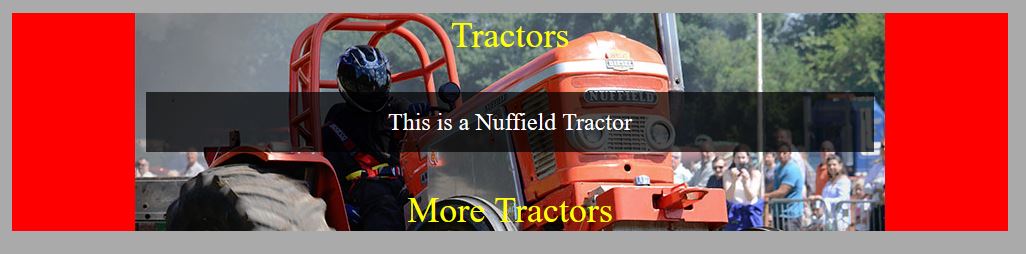
Hi guys, This is what I am aiming for: http://www.worldclassphotographic.co.uk/images/opacity.JPG Live version here: http://www.worldclassphotographic.co.uk/relativeweb/resources/opacity/ *Note the darker box around the words "This is a nuffield tractor" * This displays fine on my desktop machine, but no darker box on my tablet or mobile. I have uploaded it to codepen here: https://codepen.io/write/opacity-issues-on-tablet But it does something different again Please help Andy

-
-
-
-
Thank you guys, as Tim suggested works perfectly, but for the life of me I can't get the black boxes to center themselves within the white box. I've tried: align-self:center; text-align:center; align-content:center; align-items:center; but to no avail Any ideas would be much appreciated I will certainly look into Codepen, Andy
-
Here is my web page I am playing with: http://www.worldclassphotographic.co.uk/divs/template.php And here is the source code: <!doctype html> <html> <head> <meta http-equiv="content-type" content="text/html; charset=utf-8"> <title><?php echo $title ?></title> <link rel="stylesheet" type="text/css" href="styles/styles.css"> </head> <body> <p>This is the background</p> <div id="wrapper"> <p>This is the wrapper</p> <div class="gendiv"> <p>E30</p> </div> <div class="gendiv"> <p>E36</p> </div> <div class="gendiv"> <p>E46</p> </div> <div class="gendiv"> <p>E92</p> </div> <div class="gendiv"> <p>F30</p> </div> </div> </body> </html> And here is the CSS: body { font-family: lucida grande ,tahoma,verdana,arial,sans-serif; background-color: #11ff11; } body p { font-size: 0.8em; line-height: 1.28; } #wrapper { max-width: 70%; background-color:#ffffff; margin: 0 auto; text-align:center; border: 5px solid #4444ff; } div.gendiv { float:left; background-color: black; border:#EF0A0E 5px solid; color: white; text-align:center; font-size:30px; font-family:Baskerville, "Palatino Linotype", Palatino, "Century Schoolbook L", "Times New Roman", serif; margin: 10px; padding: 10%; max-width:50%; } Why do the black boxes not appear in the Wrapper Div (the white area)? Many thanks Andy
-
-
Hi dude, I fully appreciate what your saying about hover on mobile devices, but it used to work when you tapped on it, and I can't see whats changed to shop that happening, despite looking at code for a couple of hours yesterday :-/ Andy
-
Thank you so much dude! The only issue I have is that when on a smaller screen the drop down menu doesn't work and I can't see why Many thanks Andy
-
I decided to start from scratch again, here is the HTML and the CSS: HTML: <!doctype html> <html lang="en"> <head> <meta charset="UTF-8"> <title>CSS Only Navigation Menu</title> <meta name="viewport" content="width=device-width, initial-scale=1"> <link rel="stylesheet" href="./css/navstyles.css"> </head> <body> <label for="show-menu" class="show-menu">Show Menu</label> <input type="checkbox" id="show-menu" role="button"> <ul id="menu"> <li><a href="#">Home</a></li> <li> <a href="#">About ↓</a> <ul class="hidden"> <li><a href="#">Who We Are</a></li> <li><a href="#">What We Do</a></li> </ul> </li> <li> <a href="#">Portfolio ↓</a> <ul class="hidden"> <li><a href="#">a</a></li> <li><a href="#">b</a></li> <li><a href="#">c</a></li> </ul> </li> <li><a href="#">News</a></li> <li><a href="#">Contact</a></li> </ul> </body> </html> CSS file: @charset "utf-8"; /* CSS Document */ /*Strip the ul of padding and list styling*/ ul { list-style-type:none; margin-left:300px; padding:0; position: absolute; } /*Create a horizontal list with spacing*/ li { display:inline-block; float: left; margin-right: 1px; } /*Style for menu links*/ li a { display:block; min-width:140px; height: 50px; text-align: center; line-height: 50px; font-family: "Helvetica Neue", Helvetica, Arial, sans-serif; color: #fff; background: #f00; text-decoration: none; } /*Hover state for top level links*/ li:hover a { background: #cc0000; } /*Style for dropdown links*/ li:hover ul a { background: #f3f3f3; color: #2f3036; height: 40px; line-height: 40px; } /*Hover state for dropdown links*/ li:hover ul a:hover { background: #19c589; color: #fff; } /*Hide dropdown links until they are needed*/ li ul { display: none; } /*Make dropdown links vertical*/ li ul li { display: block; float: none; } /*Prevent text wrapping*/ li ul li a { width: auto; min-width: 100px; padding: 0 20px; } /*Display the dropdown on hover*/ ul li a:hover + .hidden, .hidden:hover { display: block; } /*Style 'show menu' label button and hide it by default*/ .show-menu { font-family: "Helvetica Neue", Helvetica, Arial, sans-serif; text-decoration: none; color: #fff; background: #19c589; text-align: center; padding: 10px 0; display: none; } /*Hide checkbox*/ input[type=checkbox]{ display: none; } /*Show menu when invisible checkbox is checked*/ input[type=checkbox]:checked ~ #menu{ display: block; } /*Responsive Styles*/ @media screen and (max-width : 760px){ /*Make dropdown links appear inline*/ ul { position: static; display: none; } /*Create vertical spacing*/ li { margin-bottom: 1px; } /*Make all menu links full width*/ ul li, li a { width: 100%; } /*Display 'show menu' link*/ .show-menu { display:block; } } I've stripped it back to basically what is in the link above, when I add the line of code highlighted in red above it moves, but the drop down menu's are then off Please help Andy
-
Hi guys, I've used this CSS menu and changed it to how I want it, but I can't for the life of me work out how to center it on the page Please help http://medialoot.com/blog/how-to-create-a-responsive-navigation-menu-using-only-css/ Many thanks Andy
-
Hi I've tried a simplish CSS menu, see here: http://www.worldclassphotographic.co.uk/test/ The problem I have is when I am using tablet view and have the screen width at 600px for example on my Nexus 7 I get the following: Is there a way I can wrap the text and make the box that it sits in 2 lines high (just for the options with long text, not all options)? Here is the HTML: <!doctype html> <html lang="en"> <head> <meta charset="UTF-8"> <title>Test menu 2016</title> <meta name="viewport" content="width=device-width, initial-scale=1"> <link rel="stylesheet" href="../test/styles.css"> </head> <body> <label for="show-menu" class="show-menu">☰ Menu</label> <input type="checkbox" id="show-menu" role="button"> <ul id="menu"> <li><a href="#">Home</a></li> <li><a href="#">News</a></li> <li> <a href="#">Services ▼</a> <ul class="hidden"> <li><a href="#">Option one </a></li> <li><a href="#">Option two</a></li> <li><a href="#">Option three</a></li> <li><a href="#">Option four with more text</a></li> </ul> </li> <li> <a href="#">Products ▼</a> <ul class="hidden"> <li><a href="#">Option one</a></li> <li><a href="#">Option two</a></li> <li><a href="#">Option three with more text</a></li> <li><a href="#">Option four with more text</a></li> </ul> </li> <li><a href="#">About</a></li> <li><a href="#">Contact us</a></li> </ul> </body> </html> And here is the CSS: @charset "utf-8"; /* CSS Document */ /*Strip the ul of padding and list styling*/ ul { list-style-type:none; margin:0; padding:0; position: absolute; } /*Create a horizontal list with spacing*/ li { display:inline-block; float: left; margin-right: 1px; } /*Style for menu links*/ li a { display:block; min-width:140px; height: 25px; text-align: center; line-height: 25px; font-family: "Helvetica Neue", Helvetica, Arial, sans-serif; color: #0C78C0; background: #ffffff; text-decoration: none; } /*Hover state for top level links*/ li:hover a { background: #19c589; } /*Style for dropdown links*/ li:hover ul a { background: #f3f3f3; color: #2f3036; height: 25px; line-height: 25px; } /*Hover state for dropdown links*/ li:hover ul a:hover { background: #19c589; color: #fff; } /*Hide dropdown links until they are needed*/ li ul { display: none; } /*Make dropdown links vertical*/ li ul li { display: block; float: none; } /*Prevent text wrapping*/ li ul li a { width: auto; min-width: 100px; padding: 0 20px; } /*Display the dropdown on hover*/ ul li a:hover + .hidden, .hidden:hover { display: block; } /*Style 'show menu' label button and hide it by default*/ .show-menu { font-family: "Helvetica Neue", Helvetica, Arial, sans-serif; text-decoration: none; color: #fff; background: #19c589; text-align: center; padding: 10px 0; display: none; } /*Hide checkbox*/ input[type=checkbox]{ display: none; } /*Show menu when invisible checkbox is checked*/ input[type=checkbox]:checked ~ #menu{ display: block; } /*Responsive Styles*/ /*Mobile device*/ @media (min-width: 1px) and (max-width: 380px){ /*Make dropdown links appear inline*/ ul { position: static; display: none; } /*Create vertical spacing*/ li { margin-bottom: 1px; } /*Make all menu links full width*/ ul li, li a { width: 100%; } /*Display 'show menu' link*/ .show-menu { display:block; } .titleimg { max-width: 320px; width:100%; background-color: #F80101; } } /*Tablet view*/ @media (min-width: 381px) and (max-width: 980px){ .titleimg { max-width: 380px; width:100%; background-color: #00ED04; } } /*Desktop view*/ @media (min-width: 981px) and (max-width: 1800px){ .titleimg { max-width: 400px; width:100%; background-color: #091DF4; } } Many thanks Andy
-
I fully agree :-)
-
Thank you for the reply dude, this exercise was more to learn php than for use on a live website. Thank you for the link :-)
-
Hi guys, I'm making a simple contact form and am having an issue with getting it to display "from" correctly in the recipients mailbox It collects the info from the contact.html form, and then passes it to the contact.php form for processing and I can display it in the email body itself, but how do I get it to read the variable $email when using the code below: <?php $first_name = $_POST['first_name']; $last_name = $_POST['last_name']; $email = $_POST['email']; $message = $_POST['message']; $to = "andye30_321bhp@hotmail.com"; $subject = $_POST['subject']; $headers = 'From: anybody@example.com' . "\r\n" . 'Reply-To: webmaster@example.com' . "\r\n" . 'X-Mailer: PHP/' . phpversion(); $body = <<<EMAIL From: $first_name $last_name Email: $email MESSAGE: $message EMAIL; mail ($to, $subject, $body, $headers); echo "Thankyou...Your message has been sent" Basically I'd like to replace the stactic text anybody@example.com with the varible $email that is collected from the html form Any help much appreciated Many thanks Andy
-
Hi guys, Im playing with unordered lists and for the life of me cannot workout why they display differently as follows: On the pc they display as I would like: And how it displays on my iphone and the ipad: The code is as follows: html document: <p align="center">Example of un ordered lists:</p> <ul class="bare-list"> <li>Coffee</li> <li>Tea</li> <li>Coca Cola</li> </ul> Css document: .bare-list{ text-align:center; } Many thanks Andy
-
-