JasmyneW
Members
-
Joined
-
Last visited
-
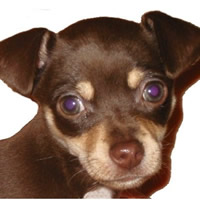
I like "Fireworks MX 2004 Zero to Hero". Like most books, there are flaws, but fewer it seems than others. Its very detailed tutorial style with projects. Another good one is "Macromedia Fireworks MX 2004 for Windows & Macintosh (Visual QuickStart Guide)". I love the Visual QuickStart series books. This one is more beginner oriented but I couldn't quite tell from your post how basic your knowledge is. I also recommend getting these kinds of books from "Bookpool.com" (no I don't get remuneration from them ) as they are 30% or more cheaper. As for your image problem, its pretty simple. Select the lasso from the left panel, outline the object you want to "pull out". Make sure you close the lasso completely so the outline "shimmers". Then copy it (Ctrl-C or "Edit" then "Copy"). Open a new image and paste it (Ctrl-V or "Edit" then "Paste"). I suggest you either use a tablet or lasso a bit outside where you want to copy, that way you can select "View" then "Magnification". It may take a few minutes (I don't know your image) but it's easy enough to remove jagged edges pixel by pixel. That's what I did with my puppy (attached) as my husband was holding her and he didn't have his shirt on, so he asked me to remove him from the picture. Hope that helps!! Good luck on your Fireworks endeavors! -JasmyneW