javadh
Members
-
Joined
-
Last visited
Everything posted by javadh
-
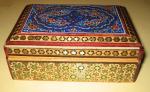
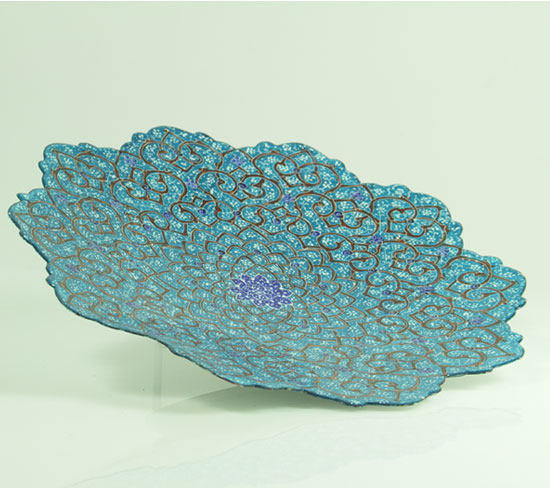
HI, I'm in the early stages of building an eCommerce website for selling "Persian handicrafts". I need your valuable advice on header navigation menu. I would like to know which of the two following options (A and B ) would better fit an eCommerce navigation menu. A. Links with dropdowns: Main category: Khatam -> Dropdowns: Clocks, Storage, Games, ... Main category: Enamel -> Dropdowns: Bowl, Clocks, Dishes, ... Main category: Ghalam Zani -> Dropdowns: Tableau, Dishes, ... Main category: Monabat -> Dropdowns: Tableau, .. Main category: Mogha'ar -> Dropdowns: Tableau, .. Main category: Books Main category: Paper B. Links Clocks Dishes Storage Games Tableau ... Please note that Khatam, Enamel, Ghalam Zani, Monabat and Mogha'ar are the types of handicaft arts which are used for making all sorts of finished handicafts products such as Clocks, Storage, Bowl, Dishes and etc. From the above method A and B you might have noticed that in method A I have categorised the navigation menu based on the methods that are used for building a handicraft (Khatam, Enamel, Ghalam Zani, ...) whereas in method B categorisation is done based on the finished product (Clocks, Storage, Bowl, Dishes, ...). Please submit your suggestions. THANKS! P.S Dish that is constructed using Enamel handicraft method Storage Box made using Khatam method