
SIWEBST
Members
-
Joined
-
Last visited
-
 FIND ME - for memory training in a funny way! FREE WEB GAME http://siwebst.eu/findme/
© A.S. - Si Web Studio, Slovenia
-
 FIND ME - for memory training in a funny way! FREE WEB GAME http://siwebst.eu/findme/
© A.S. - Si Web Studio, Slovenia
-
 FIND ME - for memory training in a funny way! FREE WEB GAME http://siwebst.eu/findme/
© A.S. - Si Web Studio, Slovenia
-
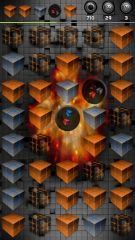 FIND ME - for memory training in a funny way! FREE WEB GAME http://siwebst.eu/findme/
© A.S. - Si Web Studio, Slovenia
-
 FIND ME - for memory training in a funny way! FREE WEB GAME http://siwebst.eu/findme/
© A.S. - Si Web Studio, Slovenia
-
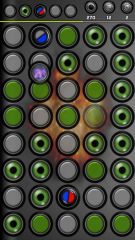 FIND ME - for memory training in a funny way! FREE WEB GAME http://siwebst.eu/findme/
© A.S. - Si Web Studio, Slovenia
-
 HUNTER - for killing boredom! With changing the tilt of the mobile navigate the hunter and destroy as many viruses (in time of 60 seconds)! - Background animations - Immersive mode - (Android Kitkat) - Saving HI SCORE
© A.S. - Si Web Studio, Slovenia
-
 FOLLOW - for heating memory! In the shortest possible time repeat the combination of sequentially lighted symbols (from one to nine). - Background animations - Immersive mode - (Android Kitkat) - Saving BEST TIME
© A.S. - Si Web Studio, Slovenia
-
 FIND ME - for memory training in a funny way! Guess 100 random combinations of five symbols as quickly as possible with use the right additional symbols to achieve the top score 5.230 points! By shaking the phone (click on game logo) choose gameplay (HI, MEDIUM or LO speed). Clicking on the additional symbols in the combinations resulting in a harder and faster playing: Level 1 - playing with two-color combinations (7 seconds, any combination 10 points) Level 2 - playing with tricolor combinations (BONUS 200 points, 6 seconds, any combination 20 points) Level 3 - playing with four-color combination (BONUS 200 points, 5 seconds, any combination 30 points) Level 4 - playing with fast two-color combination (BONUS 200 points, 4 seconds, any combination 30 points) - Theme MASTER MIND - HI speed - Theme 3D CUBES - MEDIUM speed - Kids theme SMILE FACES - LO speed - Timeout - by shaking the phone during gameplay - Disturbing object - Background animations - Immersive mode - (Android Kitkat) - Saving HI SCORE & TIME
© A.S. - Si Web Studio, Slovenia
-
 FIND ME - for memory training in a funny way! FOLLOW - for heating memory! HUNTER - for killing boredom!
© A.S. - Si Web Studio, Slovenia
-
 Si Web Studio FIND ME Games Pack! ----------------------------------------------- FIND ME - for memory training in a funny way! FOLLOW - for heating memory! HUNTER - for killing boredom! ----------------------------------------------- FREE ANDROID on GooglePlay https://play.google.com/store/apps/details?id=com.phonegap.FINDME PRO ANDROID on Amazon http://www.amazon.com/Si-Web-Studio-FIND-ME/dp/B00SOYSXU8/ PRO ANDROID on SlideME http://m.slideme.org/application/find-me-1 FREE WEB http://siwebst.eu/findme/ WEBSITE http://siwebst.eu/ FACEBOOK https://www.facebook.com/siwebst
© A.S. - Si Web Studio, Slovenia
-
-
-
Hi, here is our script for FALLING TEXT. Use it on your website and let us know Just copy & paste source to new html file and run it. For more see our FALLING TEXT EDITOR at http://siwebst.eu/swsfall/index.html. Si web studio Team ----------------------------------------------------------- <!DOCTYPE HTML> <html> <head> <meta http-equiv="Content-Type" content="text/html; charset=UTF-8"> <title>FALLING TEXT by Si Web Studio</title><script src='http://code.jquery.com/jquery-latest.min.js' type='text/javascript'></script> <style> body { margin:0 auto; width:100%; height:100%; font-size:12px; font-weight:bold; font-family:"Helvetica", sans-serif; color: ORANGE; text-align: center; background: #111; } #divbox { z-index:1000; text-align:left; position:absolute; width:auto; top:160px; left:160px; font-size:60px; color:BLACK; text-shadow: CYAN -1px -1px 0.7em; font-family:"Impact", sans-serif; font-weight:bold; } #divmove { z-index:1000; text-align:left; position:fixed; width:auto; top:70%; left:50%; font-size:400px; color:BLACK; text-shadow: CYAN -1px -1px 0.7em; font-family:"Impact", sans-serif; font-weight:bold; } </style> <script> var swsfallingtext = "S I W E B S T jQuery F A L I N G T E X T :)" var text = new Array(); text = swsfallingtext.split(' '); function swsfall(loop) { var swstext = text[loop]; $('#divmove').html(swstext).animate({ top:160, left: 160 + $('#divbox').width(), fontSize:60 },400, function(){ loop = loop + 1; if(loop < text.length){$('#divbox').append(swstext).append(' '); swsfall(loop);} else {$('#divmove').empty();$('#divbox').append(text[text.length-1]);} }).removeAttr('style'); } </script> </head> <body onload="swsfall(0);"> <div id="divbox"></div> <div id="divmove"></div> </body> </html>
-
 Responsive jQuery HTML 5, CSS3 Webshop http://siwebst.eu/warehouse1/
© Si Web Studio