cherba.online
Members
-
Joined
-
Last visited
-
Hi, Firstly, i'd like to apologise if I have mislead anyone into thinking that I have made this website page myself. All it is is the Apple Website's Home Page (READY TO GO!) in a Zip File. I just thought that I should upload it so people can use it as a reference (you can mix and match with the code Apple use... after all, they know best!). Attachment removed I simply extracted the source html, the css, and the javascript to put together this little collection. Also, I wanted to change all the file links to a local area so I have meddled with the code a bit (../images/border.png instead of something like http://images.apple.com/border.png) This whole idea may sound silly to you, but i'm a newbie to Web Design and I think it's helpful. Regards, Josh
-
No problem. But, THANKYOU SO MUCH for actually replying. That way I know that my thread is actually being acknowledged ...But still I have no solution... :/
-
Cooome on! I've been patient here!!! ...Can someone at least comment that they have no idea how t do it... PLEASE DO! I feel so alone right now
-
Thanks for being so quick with reply's... :/
-
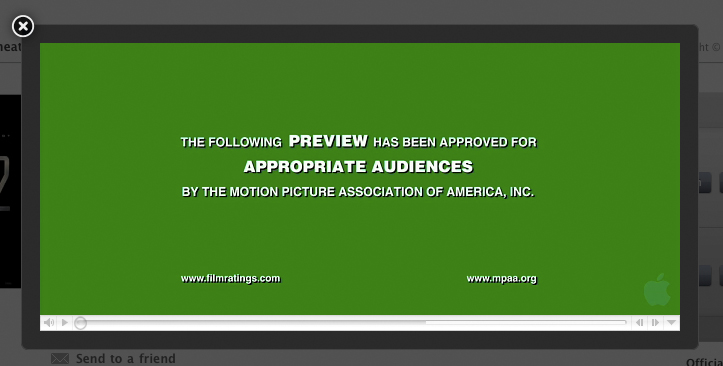
Hi, I'm a complete noob to Web Design, so i'd firstly like to ask that you don't insult my lack of knowledge. What I'm asking... Basically I would like someone to create an 'authentic' Lightbox that has 'easy-to-modify' properties. ...By 'authentic', I mean exactly the same as the lightboxes used for the Apple Website Quicktime Trailers. ...And by 'easy-to-modify', I mean files with comments like: */change this number to change the box width/* Also, the Lightbox should be able to display files of pretty much all types (jpeg's, mov's, mp3's etc.) An example can be viewed here: Apple Website Quicktime Trailer Example (click on one of the buttons under 'Standard' to view) Also, I have attached a screenshot to show the design, once the appear animation finishes: To break the effect down precisely... Animation... 1. Screen suddenly darkens as if a black solid was overlaid with 72% opacity... I said precise, didn't I?! 2. Pop-up window (Lightbox) fades in, grows in size and centers from the position of the button clicked. 3. Once the Lightbox reaches its full size there is a loading screen with a white/grey spiral loader. 4. Once the spiral loader disappears, the close icon suddenly appears without any fade. 5. Finally, the actual video (a trailer in this case) begins to play. Final Design... There is a: 18px thick solid #2b2b2b (dark grey) border. Outside of the 1st border, there is another, thinner, border: 1px thin solid #424242 (light grey) border. There is a close button on the top-left hand corner: white 'X', black surrounding circle, white border. There are rounded corners instead of the plain sharp corners on existing Lightboxes. You can see the spiral loader (that I covered in the 'Animation...' section) yourself at the link. Other Options... Trust me, i've seen every Lightbox out there, so don't suggest an already existing one to me, please. I have also tried to extract all of the html, css & javascript files from the actual Apple Website, but I can't understand their overwhelming code... so don't suggest that either. I don't mind if you get an original Lightbox creation, and then edit it (I have NO IDEA how to do it myself) to the likeness that I have specified above. Conclusion... Now I hope that I haven't overwhelmed you with my very particular requests, however, i'm a picky person :/ Also, I realise that it is a big, and somewhat cheeky, ask of me but I seriously have NO IDEA how to do it myself. Thanks in advance, Joshua